A LinkedIn video teleprompter for your next update.
Share an insight or project update without memorizing every line. Float CueCard over your iPhone Camera app, record your video, then upload the finished clip to LinkedIn.
- 13K+ downloads
- Free and open source
Sound prepared without sounding read to.
Hey — quick one before I start recording.
look at the lens
This script is floating over LinkedIn right now, on my phone.
small nod
It scrolls on its own, so my hands stay where they are and my eyes stay up here.
slow down
The pink lines are cues. They tell me how to say the next bit.
smile
They are never lines to read out — which is why you have not heard me say one.
pause, then land it
No account needed, and it is free.
Adjust the speed to your pace. Pink lines are reminders, not words to read aloud.
Hey — quick one before I start recording. look at the lens
Swipe or tap Next. Start the timer to practise your pace. Pink words are reminders, not part of your speech.
Sits on top of:
Written setup guide
Record a clear LinkedIn video update
Use CueCard with LinkedIn in six short steps, from the saved script to the final take.
-
01
Write the LinkedIn update script
Keep each line short enough to read near the lens, then save the script in CueCard so it is ready for another take.
-
02
Set a comfortable pace
Choose the scroll speed and text size in CueCard, then rehearse the opening once before you record.
-
03
Float CueCard over LinkedIn
Tap the green play button, then Start Overlay. CueCard shrinks into a movable window while LinkedIn stays open.
-
04
Open the iPhone Camera app
Choose Video and frame a clean talking-head shot; you will attach the finished clip to LinkedIn afterward.
-
05
Keep the frame professional
Place CueCard close to the lens, keep the record controls clear, and leave a little space around your face.
-
06
Review, then post to LinkedIn
Watch the saved clip once for pace and eye-line, then attach the strongest take to your LinkedIn post.
A short script to try
Select and copy this into CueCard. The [cue ...] tags are reminders to yourself; you leave the pause when you speak.
[cue steady pace]
Here is one lesson from our latest project.
We wrote down the decision before the meeting.
[cue pause]
That gave everyone something concrete to improve.
What helps your team arrive prepared?
Related setup and delivery guides
What you get
Reading a script over LinkedIn
-
01
Read your script while LinkedIn records
CueCard floats on top of LinkedIn, so you record where you always do.
-
02
Eyes near the lens
Keep the script just under the front camera, so you look like you are talking, not reading.
-
03
Cues for how to say it
Reminders like [cue smile] show in color as they pass.
-
04
Shaped to fit the LinkedIn frame
Rectangular or square, and it goes wherever you drag it.
The app itself
What it looks like.
Read your script from the full screen, or shrink it into a small window that stays on top of whatever else you open.
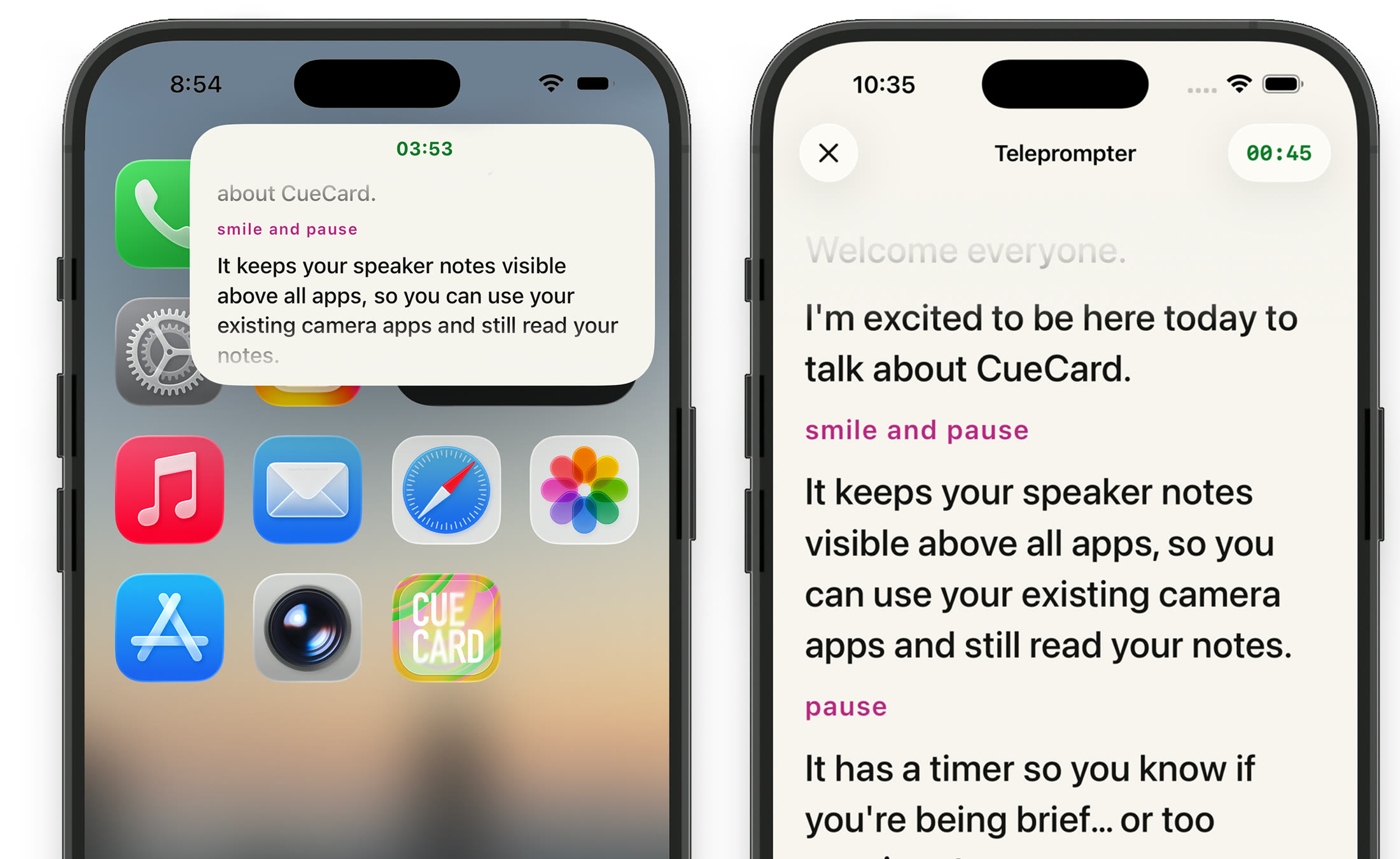
Looking for the computer app instead? CueCard for Mac and Windows keeps your speaker notes on your screen and out of your screen share.
See it work
General product demos
One short film for the iPhone app, one for the same app on iPad, and one for the Mac and Windows app. Each opens on YouTube.
Also on big screens
The same teleprompter, on iPad.
CueCard Teleprompter for iPad
A screen big enough to read from a few feet away
Filming LinkedIn from an iPad gives you more room: the script can take the whole display, so you read it from a few feet back rather than holding a phone at arm's length. Or shrink it into the floating window and film as you would anyway. See CueCard Teleprompter on iPad.
Made for
Whatever it is you have to say on camera
- Content Creatorsteleprompter app
- Coachesteleprompter app
- Course Creatorsteleprompter app
- Fitness Instructorsteleprompter app
- Podcastersteleprompter app
- Realtorsteleprompter app
- Salesteleprompter app
- Streamersteleprompter app
- Teachersteleprompter app
- TikTokersteleprompter app
- Vloggersteleprompter app
- YouTubersteleprompter app
Also on your computer
Presenting instead of filming? There is an app for that.
CueCard for Mac and Windows
Speaker notes your screen share cannot see
The other half of CueCard runs on a Mac or PC, and it hides rather than floats: the window is left out of screen capture, so a call sees your deck and never your notes. Open it for the meeting after the LinkedIn take. Any deck, or none at all — and Google Slides notes can follow your slides.
Get CueCard
On your phone in under a minute
Free, with no account required, no subscription and nothing to cancel — and free on your computer too.
On your phone, iPad and watch
A teleprompter that floats over the app you film in, and cue cards for when you speak.
Frequently asked
Questions about CueCard for LinkedIn
Is CueCard good for LinkedIn video content?
Yes. CueCard is perfect for creating professional LinkedIn videos. Keep your key points visible while recording thought leadership content.
Can I use it for company updates?
Yes. Float your talking points while recording company announcements, product updates, or team introductions.
Is CueCard free for professionals?
Yes. CueCard is completely free and perfect for business professionals.
Why is the floating window missing?
Return to CueCard and open the prompter with the green play button. Tap the script to reveal controls and look for Start Overlay. The overlay button appears when picture-in-picture is available. Close another active picture-in-picture window and try again. If it still fails, use the full-screen reader on a second device while recording.
Will the script appear in my video?
Camera recording captures the image through the lens, so the floating script is not part of that footage. Phone screen recording or a screen broadcast can capture the window. Record a short camera test and review it before posting.
Can I use this LinkedIn teleprompter on Android?
CueCard is available now for iPhone and iPad. The Android app is still in development. See the Android availability page for its status.
Do I need an account to use CueCard?
No. There is nothing to sign up for on either app, and your scripts and settings live on your device. The one exception is Google Slides sync on the desktop app, which asks you to sign in with Google so it can read the notes out of your deck. See the privacy policy for the details.