Invisible notes for course recordings.
Keep lesson outlines and talking points at your fingertips.
Speaker notes for online course creators, on Mac and Windows. Your notes stay on your screen while you present, and out of the screen everyone else is looking at.
- 13K+ downloads
- Free and open source
Right — let's start. Today: course recording.
look at the camera, not the deck
You are seeing my slides. You are not seeing this.
let that land
This window sits on my screen and is left out of the screen share entirely.
slow down
Which means the notes online course creators actually need are right here, at eye level.
check the clock
The timer keeps me honest, and the pink lines tell me how to say the next part.
smile, then continue
Nobody on the call knows either of them exist.
Adjust the speed to your pace. Pink lines are reminders, not words to read aloud.
What you get
Everything the call sees is your slide
-
01
Hidden from the screen you share
On Zoom, Google Meet and Teams the room sees your deck, and only online course creators see the notes.
-
02
Notes for any deck
PowerPoint, Keynote, a PDF or nothing at all. Google Slides notes can follow your slides.
-
03
Cues you read but never say
Reminders like [cue take a breath] show in color.
-
04
A timer for your slot
A countdown on screen keeps online course creators on time.
-
05
A window where you want it
Move it, resize it and fade it over your slides, close to the camera.
-
06
Keyboard shortcuts
Show, hide, move and time it without clicking away.
The app itself
What it looks like.
Write the script, press play and it scrolls, then set it up the way you read.
-
![CueCard for Mac and Windows with a script open, its [cue] directions in pink and a Set Timer button in the corner.](/assets/desktop-script.webp)
Write the script, with your cues in brackets. -
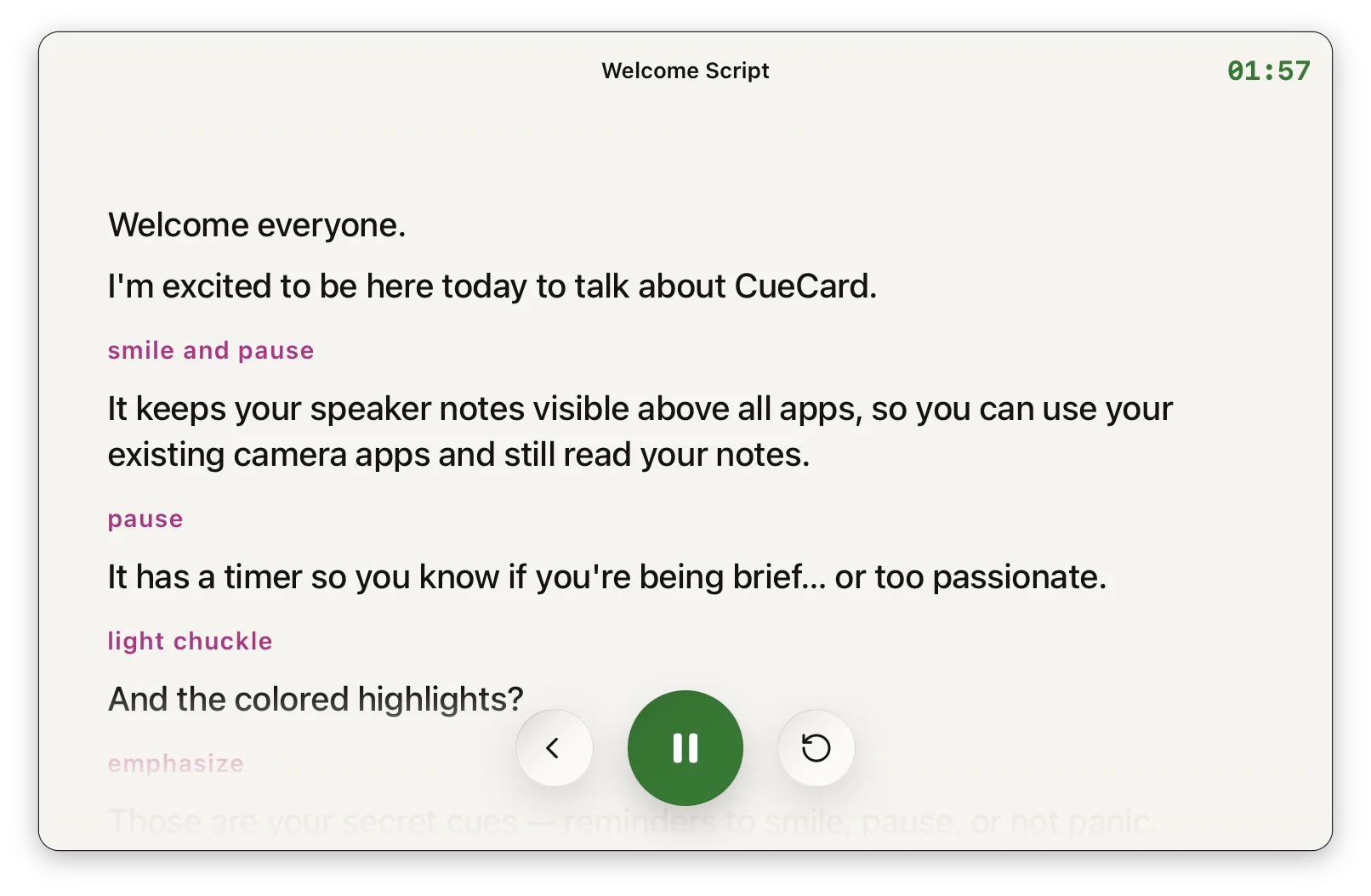
Press play and it scrolls, with the clock running. -
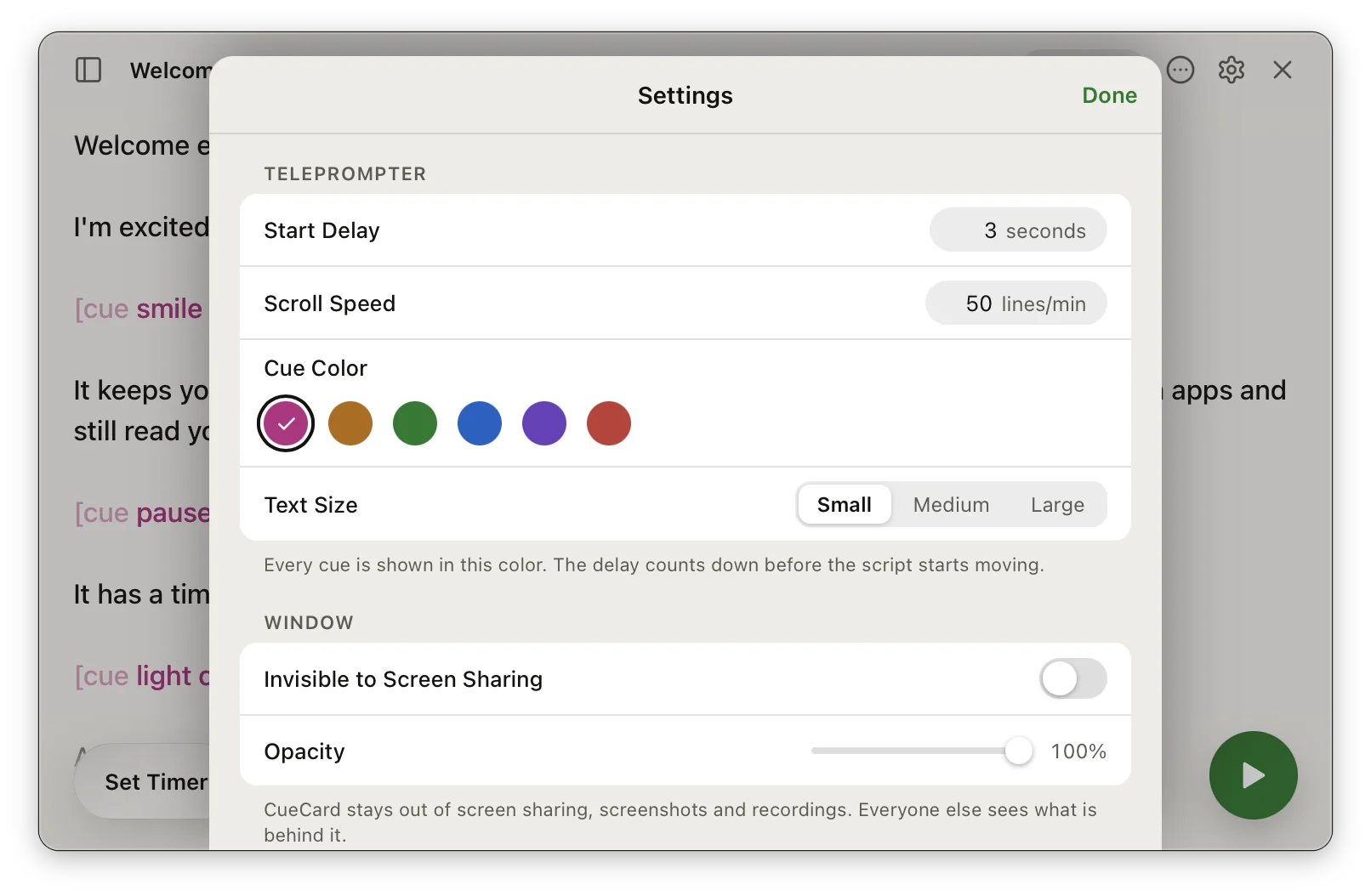
Set the speed, the cue colour and what screen share can see.
On Mac and Windows
See it work
A minute of it, on a shared screen
A short film of the notes staying off the screen everyone else can see. It opens on YouTube.
The script
Write it plainly. Read it like a pro.
Type your script the way you would say it out loud. There is one optional tag to learn: a cue. A cue reminds you how to say the next line, and CueCard shows it in colour so you notice it without reading it out.
What you write
Ordinary text, with [cue] added wherever it helps.
What you see
Your cues show up in the colour you picked while the rest of the script scrolls past in plain text, so your eye catches them and your mouth does not.
Where it earns its place
What course creators reach for it in
- Course recording
- Tutorial creation
- Live cohort sessions
- Q&A sessions
Filming a video rather than presenting? There is a floating teleprompter for course creators on your phone as well.
Made for
Whoever else has to hold the room
Also on your phone
Filming a video instead? There is an app for that.
Download
Know your lines. Show your slides.
Free on Mac and Windows. No account required, no subscription and nothing to cancel.
Find macOS installers on GitHub Find Windows installers on GitHub
Frequently asked
Questions from course creators
Can students see my notes in the recorded video?
No. CueCard is invisible in screen recordings. Your students see your polished lesson, not your speaker notes.
Does it work for screencast recordings?
Yes. CueCard is perfect for recording screencasts. Keep your talking points visible while demonstrating software or concepts.
Can I use it for live cohort-based courses?
Yes. CueCard works great for live sessions on Zoom or other platforms, keeping your curriculum visible during teaching.
Is there a mobile version for recording course content?
Yes. CueCard for iPhone and iPad lets you record educational videos on your phone with a floating teleprompter. Learn more about CueCard for Course Creators on mobile.
Do I need an account to use CueCard?
No. There is nothing to sign up for on either app, and your scripts and settings live on your device. The one exception is Google Slides sync on the desktop app, which asks you to sign in with Google so it can read the notes out of your deck. See the privacy policy for the details.
Is CueCard free?
Yes. CueCard is completely free on mobile and on desktop, and open source. Read the code on GitHub — and a star is always welcome.