A free iPhone teleprompter for the camera apps you use.
Set up a floating teleprompter or cue cards on iPhone. Read near the lens while you record, or turn cards from the Lock Screen or your Apple Watch.
- 13K+ downloads
- Free and open source
Free on the App Store, and open source on GitHub.
Hey — quick one before I start recording.
look at the lens
This script is floating over the camera right now, on my phone.
small nod
It scrolls on its own, so my hands stay where they are and my eyes stay up here.
slow down
The pink lines are cues. They tell me how to say the next bit.
smile
They are never lines to read out — which is why you have not heard me say one.
pause, then land it
No account needed, and it is free.
Adjust the speed to your pace. Pink lines are reminders, not words to read aloud.
Hey — quick one before I start recording. look at the lens
Swipe or tap Next. Start the timer to practise your pace. Pink words are reminders, not part of your speech.
Sits on top of:
What you get
Everything in the app, free
-
01
A teleprompter and cue cards in one app
Read a whole script as it scrolls, or speak from short cards one at a time.
-
02
Scrolls at your pace
Set the speed once and the script moves on its own. Pause or drag it whenever you need.
-
03
Floats over the app you film in
Your script stays on screen over the camera, Instagram, TikTok or a call, in a rectangular or square window.
-
04
Record video right in CueCard
Open the camera in a small window over your script or cards and record, with your script kept out of the video. Takes save to Photos and stay with their script, with tags and notes.
-
05
Cards on your Lock Screen
Turn cards and watch the timer with your phone locked.
-
06
An Apple Watch app
Control the teleprompter from your wrist, and read your cards there, with or without your iPhone.
-
07
A timer that warns you
It changes color near the end and when you run over, in colors you can tell apart.
-
08
Cues you read but never say
Reminders like [cue smile] show in color, telling you how to say the next line.
-
09
Find a script or bring back an earlier draft
Search saved notes by title or text. Compare versions and restore an earlier save.
-
10
Keep notes as files
Choose a notes folder to keep the latest copy of every saved script and deck outside the app, even if you remove CueCard.
-
11
Free, private, no sign-up
No account, no ads and no subscription. Your scripts are not uploaded to CueCard.
One app, three ways to use it
Read a script, speak from cards, or glance at your wrist.
Film with the teleprompter, give a talk from cards, and keep either one in reach on your Apple Watch.
- Teleprompter Your whole script, scrolling at your pace, full screen or floating over the app you film in. See how it works
- Cards One point at a time. Swipe through in the app, on the Lock Screen or on your watch. See how it works
- Apple Watch A remote for the teleprompter, and your cue cards on your wrist. See how it works
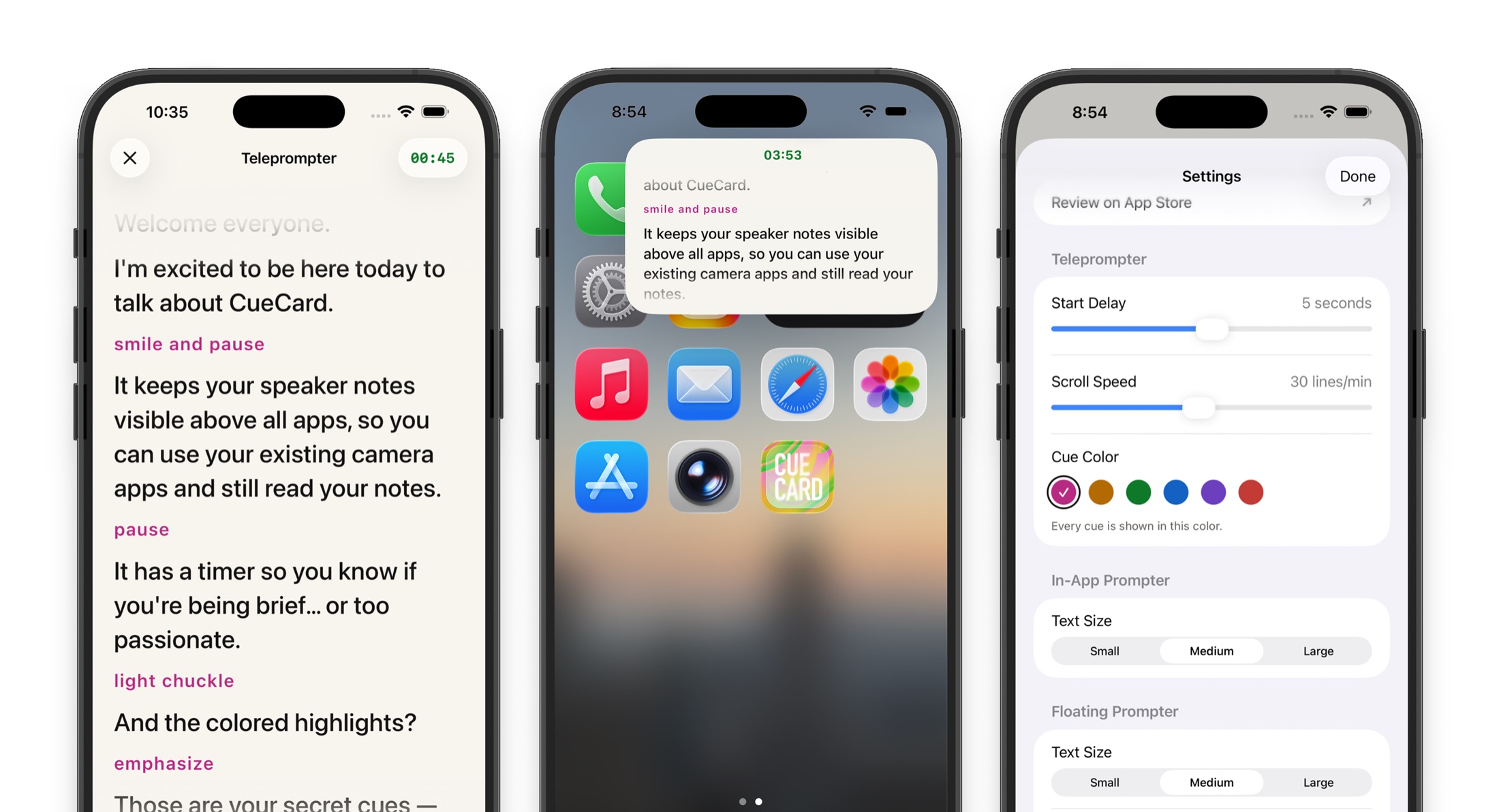
The app itself
What it looks like.
The script floating over another app, the teleprompter, a card being swiped, cards on the Lock Screen, and the settings.
Looking for the computer app instead? CueCard for Mac and Windows keeps your speaker notes on your screen and out of your screen share.
See it work
General product demos
A short film of the app doing the one thing it is for. It opens on YouTube.
Also on big screens
The same teleprompter, on iPad.
CueCard Teleprompter for iPad
A screen big enough to read from a few feet away
On an iPad the script can fill the whole display, so you can prop the iPad under a camera and read it from where you are standing, the way a studio teleprompter works. Or shrink it into the same floating window and film in whatever app you like. See CueCard Teleprompter on iPad.
Made for
Whatever it is you have to say on camera
- Content Creatorsteleprompter app
- Coachesteleprompter app
- Course Creatorsteleprompter app
- Fitness Instructorsteleprompter app
- Podcastersteleprompter app
- Realtorsteleprompter app
- Salesteleprompter app
- Streamersteleprompter app
- Teachersteleprompter app
- TikTokersteleprompter app
- Vloggersteleprompter app
- YouTubersteleprompter app
Also on your computer
Presenting instead of filming? There is an app for that.
CueCard for Mac and Windows
Speaker notes your screen share cannot see
The other half of CueCard runs on a Mac or PC, and it hides rather than floats: the window is left out of screen capture, so a call sees your deck and never your notes. Open it when you are presenting rather than filming. Any deck, or none at all — and Google Slides notes can follow your slides.
Get CueCard
On your phone in under a minute
Free, with no account required, no subscription and nothing to cancel — and free on your computer too.
On your phone, iPad and watch
A teleprompter that floats over the app you film in, and cue cards for when you speak.
Written setup guide
How to set up your iPhone teleprompter
A saved script, a comfortable reading pace, and a window close to the lens are all you need to begin.
-
01
Write and save the script
Paste or type the script in CueCard, keep the lines short, and save a named copy for the next take.
-
02
Set the pace and text size
Choose a scroll speed you can speak comfortably and text large enough to read beside the lens.
-
03
Start the floating window
Tap the green play button, then Start Overlay to turn CueCard into a movable window.
-
04
Open the iPhone Camera app
Choose Video and the selfie camera, then frame the shot before you begin recording.
-
05
Move CueCard near the lens
Use a narrow window just below the front camera and leave the Camera controls uncovered.
-
06
Record a short test
Check your eye-line and pace, then adjust the window or scroll speed before the final take.
Related setup and delivery guides
Frequently asked
Questions about CueCard Teleprompter for iPhone
How does the floating teleprompter work on iOS?
CueCard uses iOS Picture-in-Picture to create a floating window that stays on top of all your apps. You can record videos, go live, or present while your notes remain visible only to you.
Which iPhones does CueCard support?
CueCard requires iOS 17 or later. Check your installed iOS version in iPhone Settings and the current App Store compatibility listing before downloading.
Does it work on iPad too?
Yes, and it is arguably better there — the script can fill the whole display for reading at arm's length. See CueCard Teleprompter on iPad.
Can I use the Action Button to start the teleprompter?
Yes, on an iPhone with an Action Button and iOS 18. In the Settings app, go to Action Button › Controls and pick Play or Pause under CueCard.
Does CueCard have cue cards as well as a teleprompter?
Yes. Tap the mode name at the top left of the editor and choose Cards. Your talk shows one card at a time, and can sit on the Lock Screen too. See Cards.
Can I save scripts and come back to them?
Yes. Tap Unsaved below the top bar or choose ••• › Save to name and save a script or deck. Choose ••• › Open to see Saved Notes, search by title or text, and swipe a note to rename or delete it.
Can I restore an older version of a script or deck?
Yes, on iPhone and iPad. Saving changed text adds a version. Once a note has more than one version, tap the clock at the top of the editor to compare changes and restore an earlier version. Restoring adds a new version, so the history stays available.
Do I need an account to use CueCard?
No. There is nothing to sign up for on either app, and your scripts and settings live on your device. The one exception is Google Slides sync on the desktop app, which asks you to sign in with Google so it can read the notes out of your deck. See the privacy policy for the details.
Is CueCard free?
Yes. CueCard is completely free on mobile and on desktop, and open source. Read the code on GitHub — and a star is always welcome.