Notes float over your camera.
Record course videos with your lesson script visible.
A floating teleprompter built for online course creators. Your script sits on top of whatever app you are recording in and scrolls while you talk, so you can keep your eyes up and get the take in one go.
- 15K+ downloads
- Free and open source
No more forgetting your lines or switching apps mid-take.
Okay — recording. Course videos, take one.
settle, then start
Everything I am saying is on a script floating above the camera app.
eyes up
It scrolls by itself, at the speed I talk, so I am not scrubbing back to find my place.
slow down here
The coloured lines are notes to me — where to pause, where to smile, what not to rush.
smile
They are for online course creators who would rather sound like themselves than read off a card.
pause
One take. That is the point.
Adjust the speed to your pace. Pink lines are reminders, not words to read aloud.
Okay — recording. Course videos, take one. settle, then start
Swipe or tap Next. Start the timer to practise your pace. Pink words are reminders, not part of your speech.
Sits on top of:
What you get
Everything you need to stay on script
-
01
A script that stays up while you film
Whatever online course creators record in, CueCard floats above it.
-
02
Scrolls at your pace
Set the speed once, then pause or drag it whenever you need.
-
03
Cues for how to say it
Reminders like [slow down] show in color as they pass.
-
04
A countdown and a timer
A moment to settle before it moves, and a timer that keeps online course creators to the length a take has to be.
-
05
Cue cards when you are speaking live
Short cards to swipe through, on your phone, Lock Screen or Apple Watch.
-
06
Scripts saved for next time
Find the scripts online course creators reuse by title or text, and restore an earlier version when a rewrite needs undoing.
The app itself
What it looks like.
Read your script from the full screen, or shrink it into a small window that stays on top of whatever else you open.
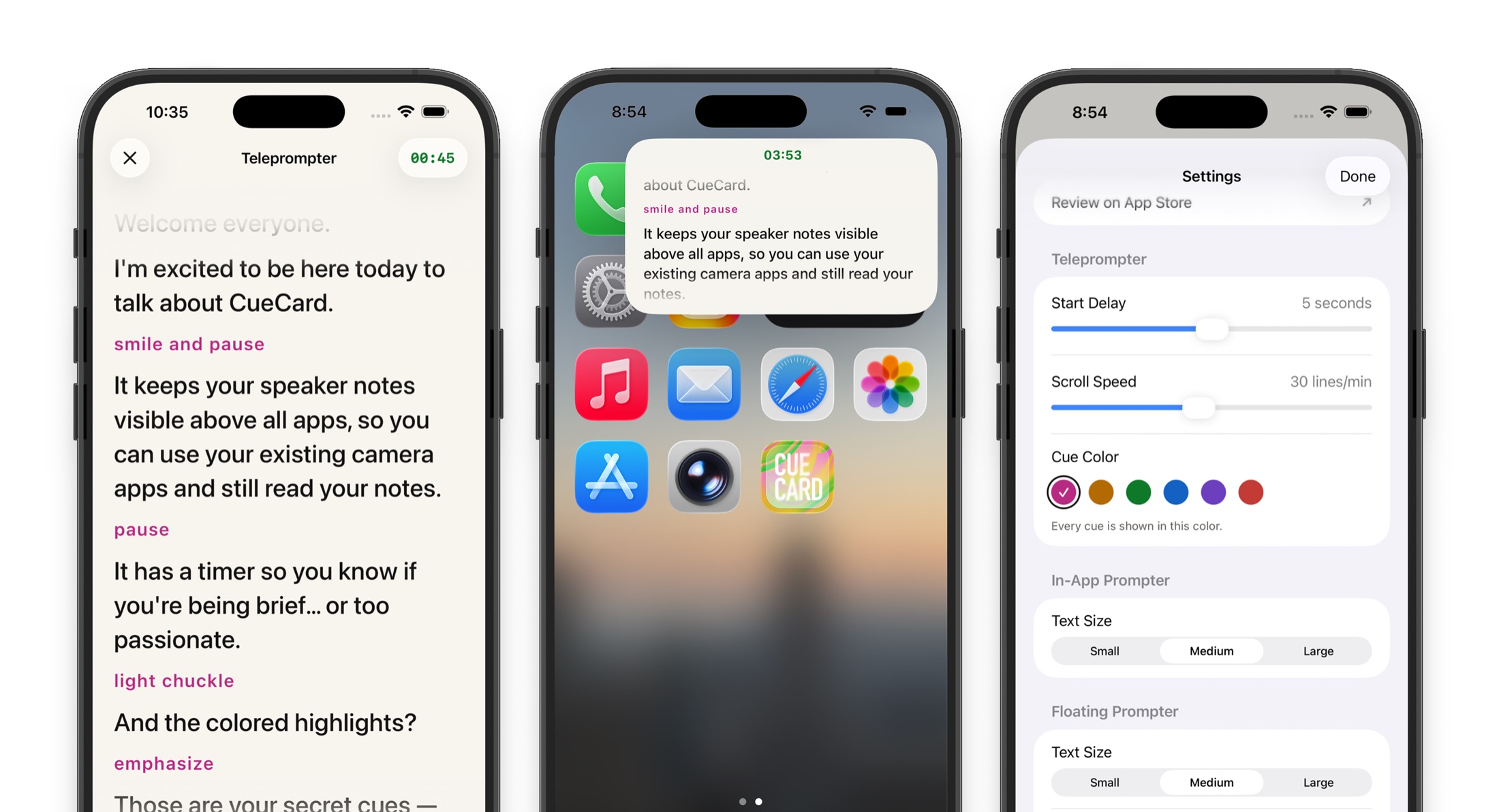
Looking for the computer app instead? CueCard for Mac and Windows keeps your speaker notes on your screen and out of your screen share.
See it work
A minute of it, in use
Short films of the app doing the one thing it is for. Each opens on YouTube.
Where it earns its place
What course creators use it for
- Course videos
- Promotional content
- Student updates
- Quick tips
Presenting rather than filming? There are invisible speaker notes for course creators on a Mac or PC as well.
Also on big screens
The same teleprompter, on iPad.
CueCard Teleprompter for iPad
A screen big enough to read from a few feet away
An iPad is the screen a good many course creators end up propping under the lens. The script runs the full width of it, big enough to read from where you are standing with both hands free. Shrink it back into the floating window whenever you would rather film in an app. See CueCard Teleprompter on iPad.
Made for
Whoever else has to say it on camera
- Content Creatorsteleprompter app
- Coachesteleprompter app
- Course Creatorsteleprompter app
- Fitness Instructorsteleprompter app
- Podcastersteleprompter app
- Realtorsteleprompter app
- Salesteleprompter app
- Streamersteleprompter app
- Teachersteleprompter app
- TikTokersteleprompter app
- Vloggersteleprompter app
- YouTubersteleprompter app
Also on your computer
Presenting instead of filming? There is an app for that.
CueCard for Mac and Windows
Speaker notes your screen share cannot see
Most course creators present from a laptop as well as film on a phone. On a Mac or PC the CueCard window is left out of screen capture, so a call sees your deck and never your notes — same scripts, same cues, nothing on the shared screen.
Get CueCard
On your phone in under a minute
Free, with no account required, no subscription and nothing to cancel — and free on your computer too.
On your phone, iPad and watch
A teleprompter that floats over the app you film in, and cue cards for when you speak.
Written setup guide
A filming workflow for course creators
Name the learning outcome before recording. Divide a lesson into demonstration and explanation clips, with a saved script for each so you can replace one section later.
-
01
Shape the script for Course videos
Write the lines online course creators need word-perfect, keep each one short, and save the script in CueCard.
-
02
Rehearse one short take
Float CueCard beside the lens, record the opening, then adjust the pace before filming the full version.
A short script to try
Select and copy this into CueCard. The [...] tags are reminders to yourself; you leave the pause when you speak.
By the end of this lesson, you will have a first outline.
[show the example]
Start with the question your lesson answers.
Then add one activity that lets someone try it.
[pause]
Pause the video and write yours.
Related setup and delivery guides
Frequently asked
Questions from course creators
Can I record course content on my phone with CueCard?
Yes. CueCard is perfect for recording mobile course content with a floating teleprompter.
Will students see the teleprompter in course videos?
No. CueCard sits on top of your camera app on screen, not in front of the lens, so the camera never records it. Your students see you and nothing else. The one exception is screen recording, which captures your whole screen — close the prompter first if that is how you are recording.
Is there a desktop version for screencast recordings?
Yes. CueCard for Mac and Windows lets you keep your notes off the screen during screen recordings. Learn more about CueCard for Course Creators on desktop.
Is CueCard free for course creators?
Yes. CueCard is completely free and open source.
Do I need an account to use CueCard?
No. There is nothing to sign up for on either app, and your scripts and settings live on your device. The one exception is Google Slides sync on the desktop app, which asks you to sign in with Google so it can read the notes out of your deck. See the privacy policy for the details.