Free speaker notes that stay out of your screen share.
Your notes stay on your screen and out of the screen share. On Zoom, Google Meet, and Microsoft Teams, your audience sees the deck — and not your speaker notes.
- 13K+ downloads
- Free and open source
Thanks for joining — I'll share my screen in a second.
wait for the green dot
You can see my deck now. You cannot see this window.
let that land
These are my speaker notes, sitting on my screen and left out of what Zoom, Meet or Teams is sending you.
slow down
The clock at the top is counting this section down, so I finish when I said I would.
check the time
And the pink lines are reminders about how to say the next part.
smile, then move on
Right — on to the numbers.
Adjust the speed to your pace. Pink lines are reminders, not words to read aloud.
What you get
Everything the call sees is your slide
-
01
A script that scrolls while you speak
Press play, with a speed, text size and start delay you choose. Pause, go back or restart whenever you need.
-
02
Saved scripts for the next presentation
Name a script and open it again from the sidebar. Import and export text files with your cues included.
-
03
Hidden from your screen share
Your notes stay on your screen while Zoom, Google Meet and Teams show only your slides.
-
04
Cues you read but never say
Reminders like [cue slow down] show in color, telling you how to say the next part.
-
05
A timer for your slot
Set a duration for a countdown with warning and overtime colors, or leave it unset to count up. The timer keeps going across slides.
-
06
Google Slides notes that follow your slides
With the browser extension, the notes for the slide you are on show up as you present.
-
07
Works with any deck, or none
PowerPoint, Keynote, a PDF or no slides at all. Just paste your notes in.
-
08
Keyboard shortcuts
Show, hide, move and time it without clicking away from your presentation.
The app itself
What it looks like.
Write the script, press play and it scrolls, then set it up the way you read.
-
![CueCard for Mac and Windows with a script open, its [cue] directions in pink and a Set Timer button in the corner.](/assets/desktop-script.webp)
Write the script, with your cues in brackets. -
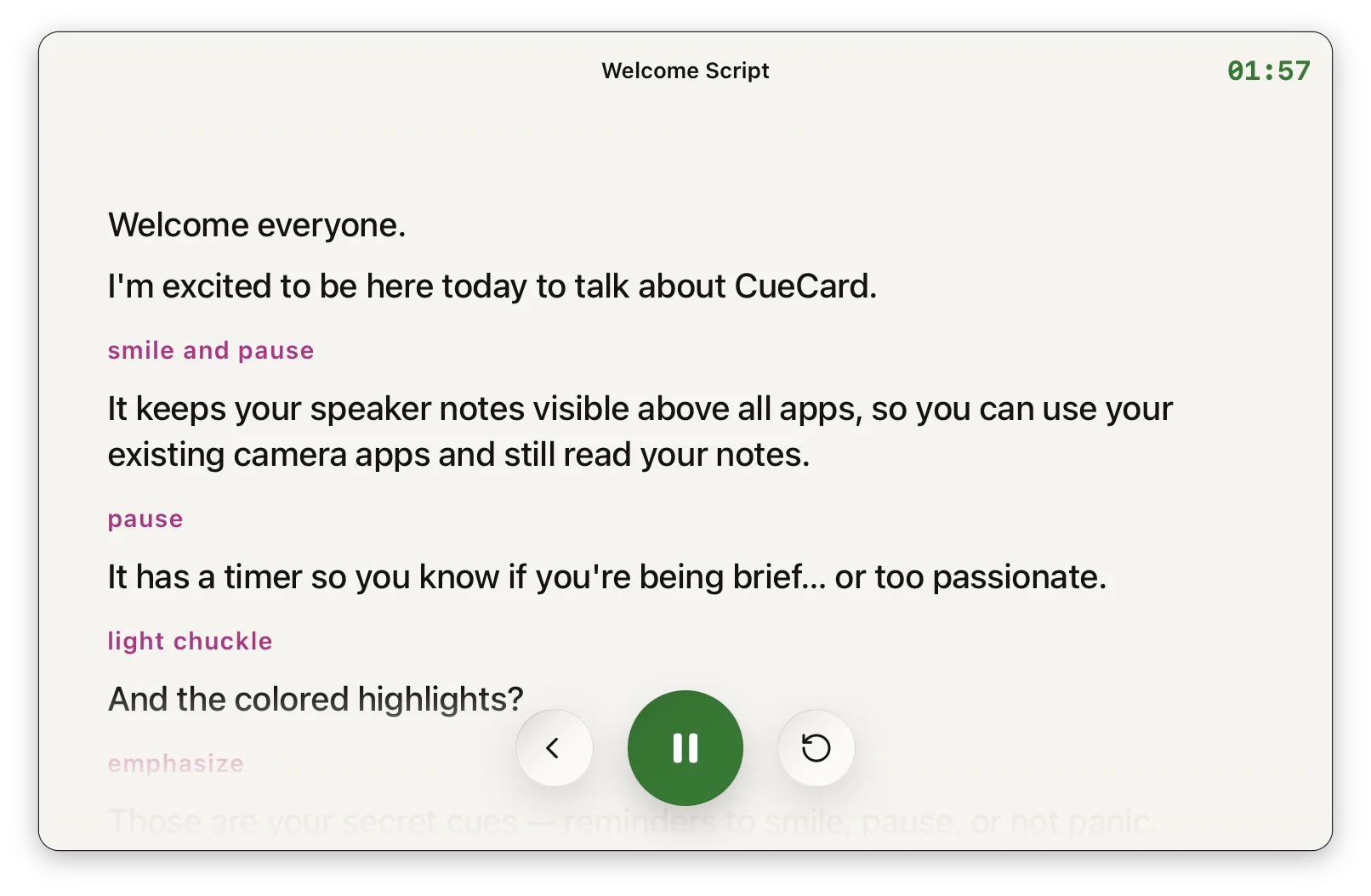
Press play and it scrolls, with the clock running. -
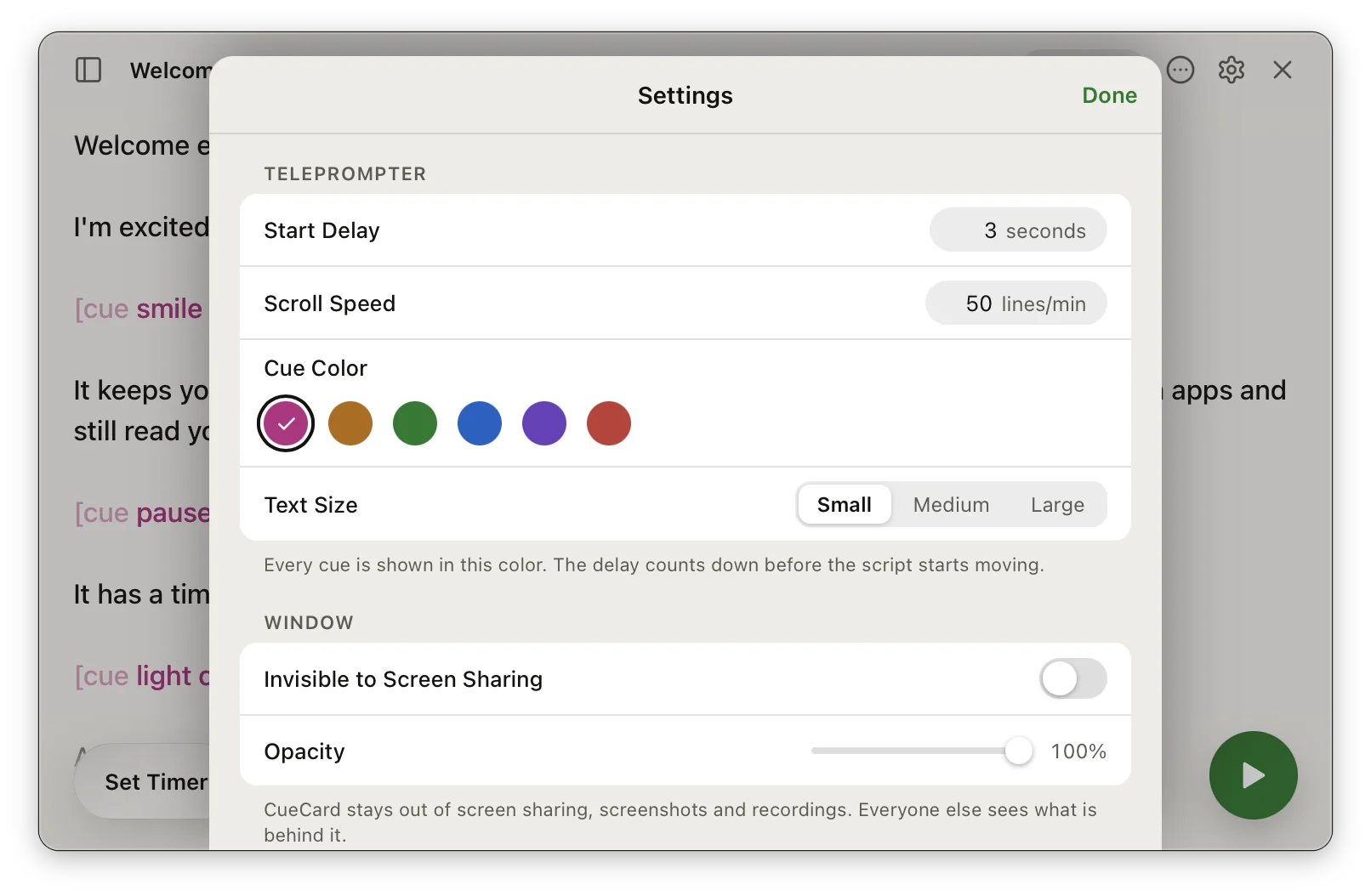
Set the speed, the cue colour and what screen share can see.
On Mac and Windows
See it work
Watch it disappear from a screen share
A short film of the notes staying off a shared screen, and two of the phone app for good measure. Each opens on YouTube.
The script
Write it plainly. Read it like a pro.
Type your script the way you would say it out loud. There is one optional tag to learn: a cue. A cue reminds you how to say the next line, and CueCard shows it in colour so you notice it without reading it out.
What you write
Ordinary text, with [cue] added wherever it helps.
What you see
Your cues show up in the colour you picked while the rest of the script scrolls past in plain text, so your eye catches them and your mouth does not.
Made for
Whoever has to hold the room
Also on your phone
Filming a video instead? There is an app for that.
Download
Know your lines. Show your slides.
Free on macOS and Windows. If you present from Google Slides, add the browser extension as well and your notes will follow your slides.
Find macOS installers on GitHub Find Windows installers on GitHub
Frequently asked
Asked before downloading
Is CueCard invisible on Zoom, Google Meet and Microsoft Teams?
Yes. CueCard is designed to be undetectable on Zoom, Microsoft Teams, Google Meet and similar apps: it is excluded from screen capture, so your speaker notes stay off the shared screen while your deck goes out normally. Run one practice call to confirm it behaves as you expect with your setup.
Do I need Google Slides to use CueCard?
No. Type or paste your notes straight into CueCard and present from anything you like — PowerPoint, Keynote, a PDF, a browser, or nothing at all. Google Slides sync is one extra way to use CueCard, not something it needs to work.
How do I sync speaker notes from Google Slides?
Install the CueCard desktop app and browser extension. In CueCard, choose Google Slides and click Connect Google Slides, then authorize read-only access to your presentations with Google. Open your deck in the browser and present; the notes in CueCard follow the current slide. You can read them in the editor or press play to scroll them in the prompter.
How do cue tags work?
A cue is a reminder to yourself about how to say the next part, rather than another line to read. Write [cue slow down] or [cue pause here] in the middle of your notes and CueCard draws it in colour, so you take it in as a direction instead of reading it out. Cues are optional.
Does the desktop app scroll my script automatically?
Yes. Press play to open the prompter. In Settings, choose Scroll Speed in lines per minute, a Start Delay before scrolling begins, and Small, Medium or Large text. You can pause, go back ten seconds, restart or scroll by hand. Google Slides notes can scroll too.
Can I save, import and export scripts on desktop?
Yes. Choose Save as New from the ••• menu to name a script, then open it again from Scripts in the sidebar. Save updates the current script. Import from File and Export to File let you move scripts as text files, with cues included.
Which operating systems does the desktop app run on?
macOS and Windows. Both builds are on the downloads section and on the GitHub releases page.
Do I need an account to use CueCard?
No. There is nothing to sign up for on either app, and your scripts and settings live on your device. The one exception is Google Slides sync on the desktop app, which asks you to sign in with Google so it can read the notes out of your deck. See the privacy policy for the details.
Is CueCard free?
Yes. CueCard is completely free on mobile and on desktop, and open source. Read the code on GitHub — and a star is always welcome.