Cue cards for your class presentation.
A class presentation is usually a set time, a set of slides and a teacher who marks you on eye contact. Put one point per card, swipe with your slides, and let the timer tell you when to wrap up.
- 3,600+ downloads
- — GitHub stars
- Free and MIT licensed
Slide 1: The water cycle in three steps.
look up
Evaporation: the sun heats water, it rises as vapour.
Condensation: vapour cools into clouds.
point to diagram
Precipitation: rain, snow, hail. Back to the start.
Question for the class: where did today's rain start?
pause
The pink lines are cues, written for you to read and not to say, and the clock at the top is the timer counting how long you have been talking.
Slide 1: The water cycle in three steps. look up
Swipe the card or tap Next. The pink words are cues, reminders you never say out loud, and the clock counts up from when you started.
What you get
Why cards work for a presentation
-
01
A card for each slide
The point to make, one card at a time, in step with your slides.
-
02
A timer for your slot
It warns you when it is time to wrap up.
-
03
Cues for eye contact and pace
Reminders to look up or slow down, in color.
-
04
Free, no sign-up
No account, no ads and no subscription.
The app itself
What it looks like.
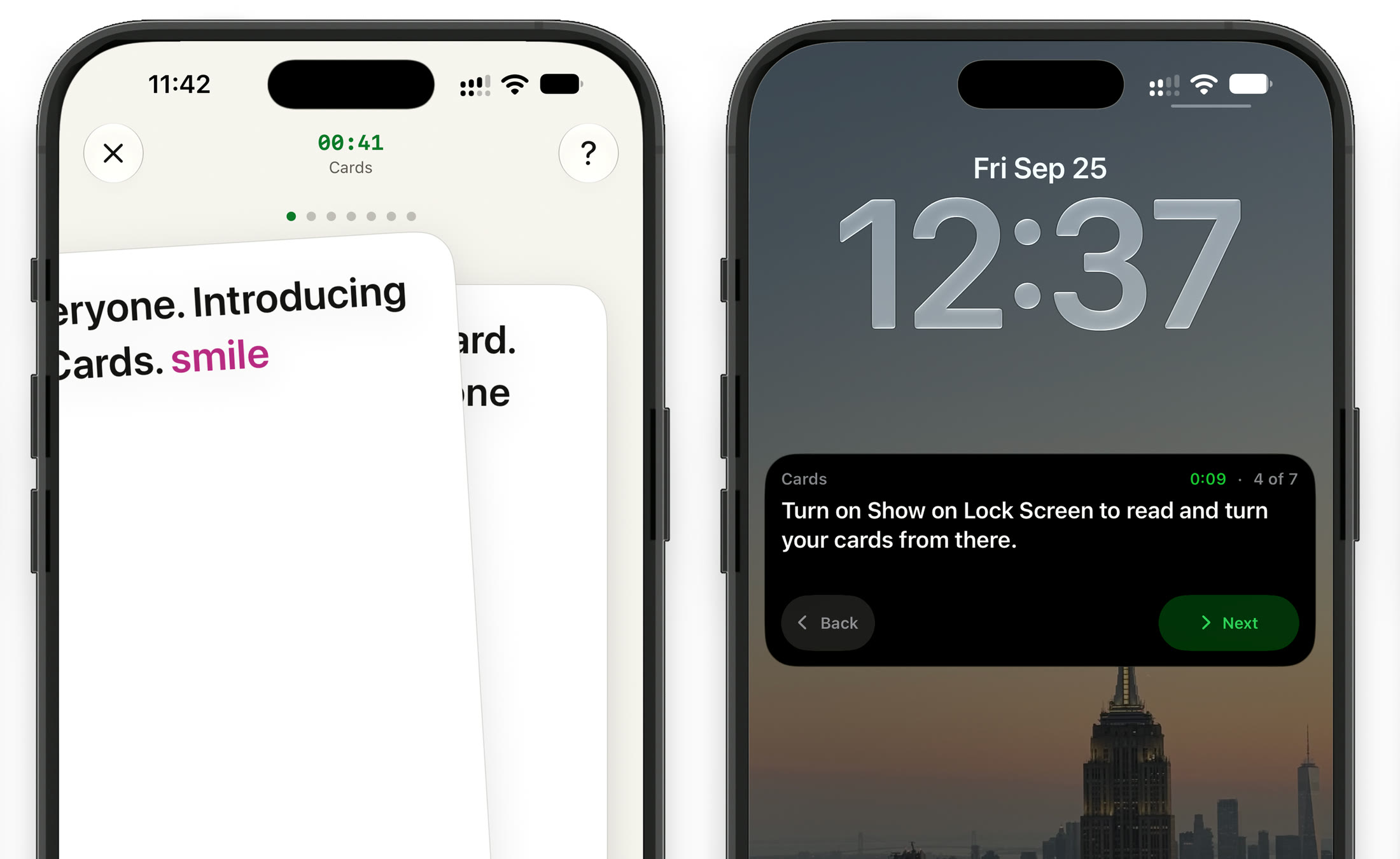
Swiping to the next card in the app, and the same deck on the Lock Screen with Back and Next.
The rest of CueCard
Need every word instead? There is a teleprompter too.
- Teleprompter Your whole script, scrolling at your pace, full screen or floating over the app you film in. See how it works
- Cards One point at a time. Swipe through in the app, on the Lock Screen or on your watch. See how it works
- Apple Watch A remote for the teleprompter, and your cue cards on your wrist. See how it works
Cue cards for
Whatever it is you have to stand up and say
Get CueCard
On your phone in under a minute
Free, with no account required, no subscription and nothing to cancel.
On your phone, iPad and watch
A teleprompter that floats over the app you film in, and cue cards for when you speak.
Written setup guide
How to present from cue cards on your phone
Build the slides first. Then make one card for each.
-
01
Switch to Cards
Tap the mode name at the top left of CueCard's editor and choose Cards.
-
02
One card per slide
Start each card with the slide it goes with, then the point you need to make. Keep facts and numbers on the card, not the explanation.
-
03
Add cues where you rush
Type [ or tap Add Cue for reminders like [cue pause] or [cue look up]. They show in color and are never read out.
-
04
Set a timer with a warning
Tap the timer beside Read Cards, set how long you have, and use Warn in Last so the time changes color before you run over.
-
05
Rehearse with Read Cards
Tap Read Cards and run the whole deck out loud, swiping or tapping Next. Cut any card you have to squint at.
-
06
Speak from your Lock Screen or watch
Turn on Show on Lock Screen in Cards Settings to turn cards with the phone locked, or keep the deck on your Apple Watch and leave the phone in your pocket.
A short deck to try
One card per paragraph: type each into its own box in CueCard.
Slide 1: The water cycle in three steps. [cue look up]

Evaporation: the sun heats water, it rises as vapour.

Condensation: vapour cools into clouds. [cue point to diagram]

Precipitation: rain, snow, hail. Back to the start.

Question for the class: where did today's rain start? [cue pause]
Frequently asked
Questions, answered.
Can I use my phone for presentation notes?
If your teacher allows it, yes. Cards mode shows one point at a time in large text, which is quicker to glance at than a page of notes. Turn on Show on Lock Screen and you can read and turn cards with the phone locked.
How many cue cards should a five-minute presentation have?
About one per slide, or one per minute if you have no slides. Five to eight short cards is plenty; if a card needs reading, it is too long.
Presenting online instead?
For a presentation over Zoom, Google Meet or Teams, CueCard for Mac and Windows keeps your notes on your screen and out of the screen share.
Do I need an account to use CueCard?
No. There is nothing to sign up for on either app, and your scripts and settings live on your device. The one exception is Google Slides sync on the desktop app, which asks you to sign in with Google so it can read the notes out of your deck. See the privacy policy for the details.
Is CueCard free?
Yes. CueCard is completely free on mobile and on desktop, and open source under the MIT licence. Read the code on GitHub — and a star is always welcome.
Is CueCard open source?
Yes, MIT licensed, on GitHub. An app that can see your script is one worth being able to read the source of.
Where are my scripts stored?
On your device. Your notes are not uploaded to us. The privacy policy sets out exactly what is and is not kept.
How do I report a bug or ask for a feature?
Open an issue on GitHub, or email support@cuecard.dev. Both are read.